Resolving IPPS Printing Errors in the Printer Driver (Windows)
If you're seeing an error in your printer driver's print queue while using IPPS (Internet Printing Protocol Secure), here are some common causes and how to fix them.
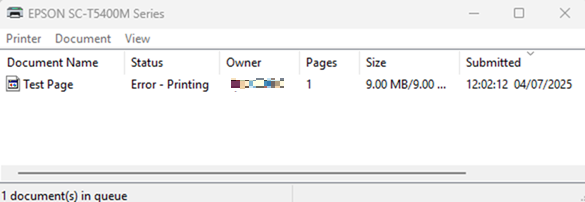
Possible Causes and Solutions
1. Using an Older Operating System
If you're printing from a version of Windows older than 7 or Windows Server 2008, IPPS printing may not be supported.
What to do:
- Enable RAW (Port 9100) and LPR ports on your printer.
- You can do this via the printer’s Web Config or Control Panel.
 Note: Note: |
|---|
|
Some printer models may only allow this change through the Web Config. |
2. Using an Outdated Printer Driver
Older drivers may not support IPPS printing.
Solutions:
- Recommended: Uninstall the old driver and install the latest version. The new driver will automatically set up a print queue that supports IPPS.
- Alternative: If you prefer to keep the old driver, enable RAW (9100) and LPR ports as described above. Keep in mind that this method offers lower security compared to IPPS.
How to Enable RAW (9100) and LPR Ports
On the Printer Control Panel:
- Go to General Settings > Network Settings > Advanced > Printing Port.
-
Enable the following protocols:
- LPR
- RAW
- WSD

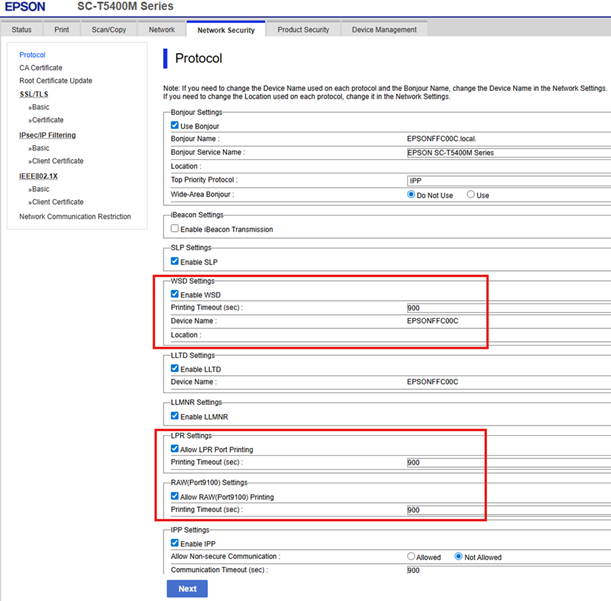
In the Printer Web Config:
- Open a browser and connect to the printer’s Web Config.
- Log in as an administrator.
- Navigate to the Network Security tab.
- Select Protocol from the left-hand menu.
-
Enable:
- WSD
- LPR Port Printing
- RAW Port (9100) Printing
 Warning: Warning: |
|---|
| For detailed steps on accessing the Web Config or opening the printer driver settings, please refer to the User's Guide that came with your printer. |