How to change Windows security setting in case of Epson Edge Print job load failure
Windows 10 and Windows 11 Security update to resolve JPG/PNG/TIFF/PDF load failure.
- Close Epson Edge Print (EEP).
- Restart computer.
- Open Windows Settings click "Privacy & Security" > "Windows Security" > "Virus & threat protection".
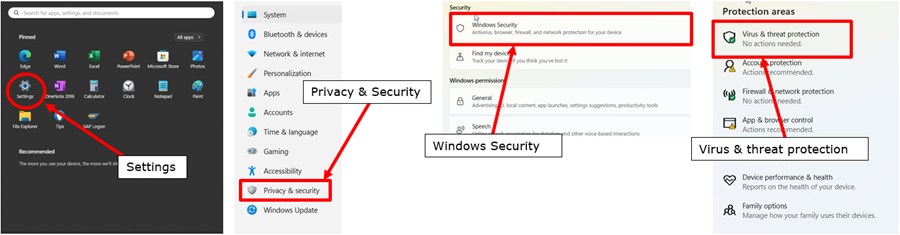
- Under "Virus & threat protection settings", click "Manage settings" > "Exclusions" > "Add or remove exclusions".
- Select "Add an exclusion", and then select "Process".
- Input "EPImageConverterWorker.exe" into edit box, and then click "Add".

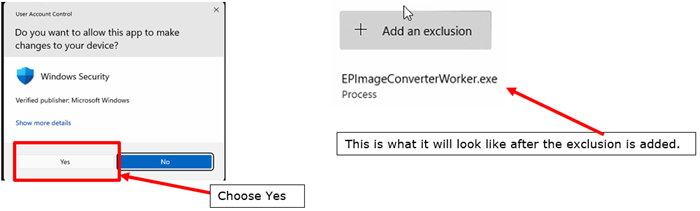
- Choose Yes and verify that the file exclusion is added.
- Restart Epson Edge Print.
- Verify if JPG/PNG/TIFF/PDF that failed will open.