ICC Profiles are no longer listed after updating macOS
When macOS is updated, it is possible that the printer profiles will no longer be displayed, because ICC profile information is somehow cleared during macOS update.
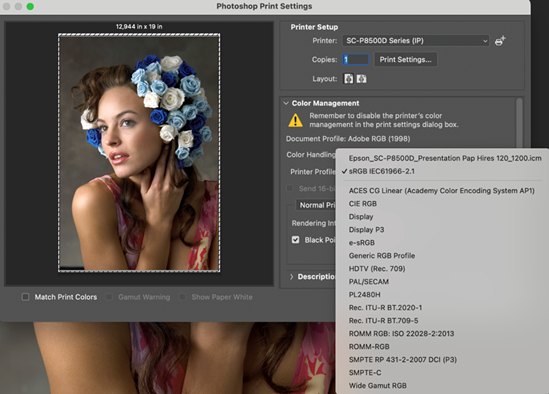
Solution
- If no media has been added by Epson Media Installer, ICC profile information can be restored by following the instructions
below:
- Open "System Settings" and select "Printers & Scanners".
- Specify the printer whose profile is not being displayed, then "Remove Printer..." and confirm it's removal.
- Once the printer has been removed, click on "Add Printer, Scanner or Fax..." to register the printer again.
- Restart your Mac.
- If the issue is not resolved you can copy the missing profiles manually from the following folder:
/Library/Printers/EPSON/InkjetPrinter2/ICCPrifiles/[Model_name].profiles/Contents/Resources
to the following folder:
/Library/ColorSync/Profiles
- If media has been added by Epson Media installer, ICC profile information can be restored the following way:
- Start Epson Media Installer and select the printer whose profile is not being displayed.
- Click "Refresh".
- Restart your Mac.
- If the issue is not resolved, you can copy the missing profiles manually from the following folder:
/Library/Application Support/Epson/Epson Media Installer/library/[Model_name]
to the following folder:
/Library/ColorSync/Profiles
