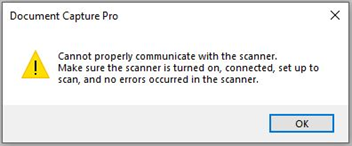
Document Capture Pro (DCP) | "Cannot properly communicate with the scanner" error appears when trying to add a network scanner.
If Document Capture Pro fails to communicate with the scanner you will see the below error:
Solution:
- Check the scanner is connected to the network correctly
- Solution 1 - Change Access Rights
- Solution 2 - Change User Account Control (UAC) level
Check the scanner is connected to the network correctly.
Check Epson Scan 2: Network Setup for more information.
Solution 1 - Change Access Rights
Write permissions are needed for some folders and files. Check and change the permission of the folder and file below.
-
Folder:
C:\Users\ username\AppData\Roaming\EPSON\Epson Scan 2 -
File:
C:\ProgramData\EPSON\EpsonScan2\Connection\ConnectInfo.dat
Solution 2 - Change User Account Control (UAC) level
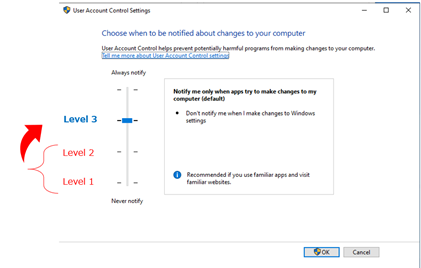
Epson Scan 2 is premised on UAC Level 3, so change to UAC Level 3 when operating Epson Scan 2. (Restore level when the settings are complete).
-
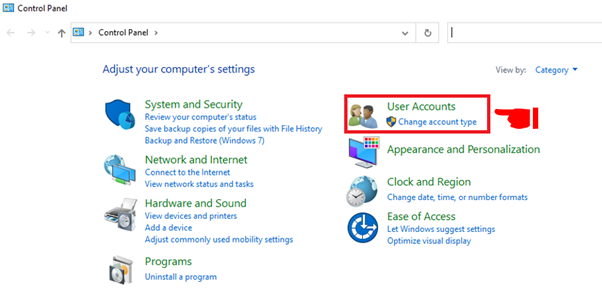
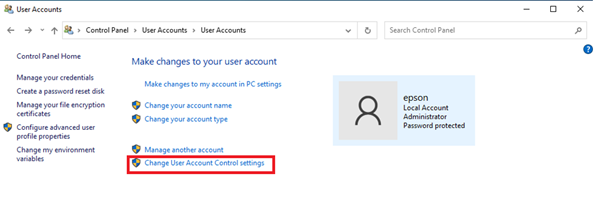
From Control Panel select
User Accounts Page
-
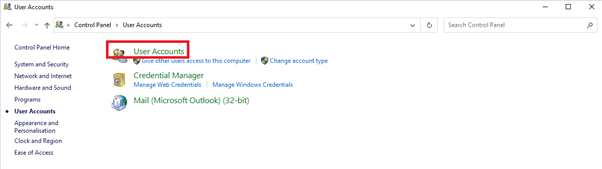
Click
User Accounts
-
Click
Change User Account Control settings
-
Change UAC (User Account Control Settings) level 1-2 to 3