BT-40 USB Type-C Connection Troubleshooting for PC
This document acts as a guide for diagnosing and troubleshooting connection issues between the Moverio BT-40 and a Windows 10 PC or laptop.
In normal operation the Moverio BT-40 can be connected by USB type-C to your PC or laptop and used as a second screen.
FURTHER INFORMATION
- Plug the BT-40 Device into a compatible USB-C port.

- The following notification may be displayed on the first installation.

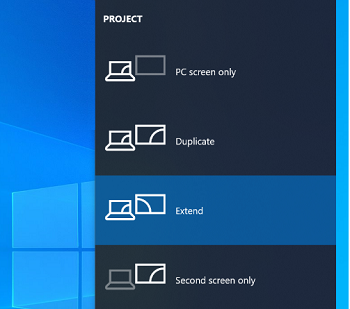
- The BT-40 is plug and play and should now display your PC in the Smart Glass, like a monitor. Projection options, as
shown in the image below are also available.
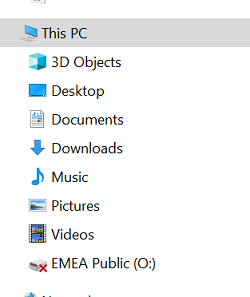
- Unlike other USB devices, there is no device listed in Explorer.
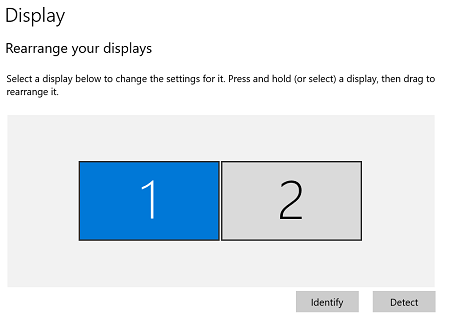
- In Display Settings the new display is shown.
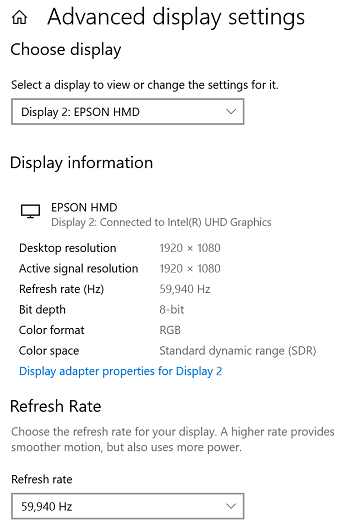
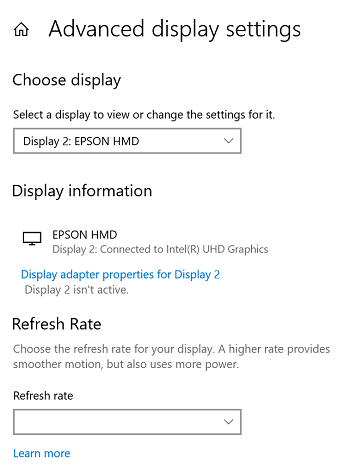
- In Advanced Display Settings you can select ‘EPSON HMD’ and view some of the characteristics of the BT-40.
- Make sure the Glasses are placed correctly in front of the eyes. Even a small misalignment may put the screen out of view.
- Please ensure the USB-C port on the PC or laptop supports Display Port Alternate Mode (DP ALT mode) by checking the specifications
provided by the equipment manufacturer.
- USB Adapters, like Type A > Type C are not supported
- Apple desktop PCs and laptops may support BT-40 with Thunderbolt 3 connection. iPhone and iPad devices are not supported
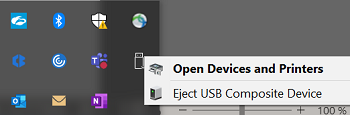
- Reconnect the BT-40 by clicking on ‘Eject USB Composite Device’ in the Taskbar Overflow area, and then unplugging and
plugging the BT-40 back into your PC. Repeat this process several times.
- It may be that the BT-40 is detected but not configured correctly. Check the ‘Advanced Display Setting’, and look if
it says, ‘Display 2 isn’t active’ and the ‘Refresh Rate’ box is empty. If this is the case, try repeating step 3 above.
- Check if the display has been detected, by going to ‘Display Settings’
This is the Display setting for only one Display. This means the BT-40 has not been detected
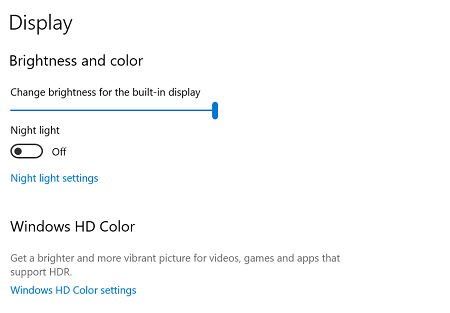
This is the Display setting for multiple display. This means the BT-40 has been detected Make sure any other Monitors have been disconnected - If the BT-40 is not detected, then go to the ‘Device Manager’ and look for:
- A USB entry called ‘Type-C DP Dongle’
- List of Sensors detected from the BT-40 Motion Sensors
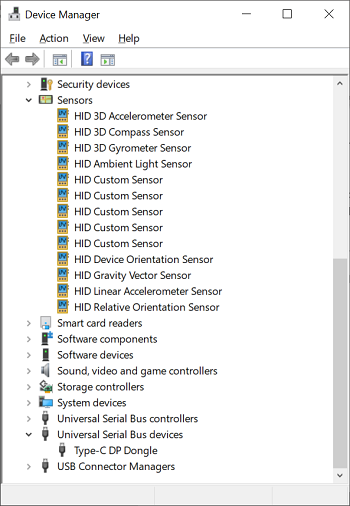
- If the BT-40 is not listed in the previous step or the Driver not setup correctly, then it means that your PC or laptop is not compatible or there is a problem with the PC or laptop configuration. Please contact the vendor for any warranty or support issues with the product.
- If you think the BT-40 is at fault, then please cross check it with one of the compatible Smart Phones listed in the article below.
Smartphone Compatibility
For Smartphone compatibility please view the below support article:
Which USB Type-C devices are compatible with my BT-40?
PC Compatibility
The below PC models have been tested using the latest firmware 1.1.0.
| Manufacturer | Model Name | Result |
|---|---|---|
| Acer | Swift 3 | ✓ |
| Acer | SF514-56T-71J2 | ✓ |
| ASUS | ASUS Vivobook S 15 S5507 | ✓ |
| ASUS | VivoBook S14 | ✓ |
| ASUS | ROG STRIX SCAR 17 | ✓ |
| ASUS | ZenBook 14 PRO UX3402ZA | ✓ |
| ASUS | Vivobook 13 Slate OLED T3300KA-0112KN6000 | ✓ |
| DELL | G3-3500 | ✓ |
| DELL | Inspiron 15 | ✓ |
| DELL | Inspiron 13 7000 2-in-1 | ✓ |
| DELL | XPS 9315 | ✓ |
| DELL | G15-5525-R1848ATW | ✓ |
| DELL | G15-5520-R1748BTW | ✓ |
| Dynabook | Satellite L50-G | ✓ |
| Dynabook | dynabook G83/HS | ✓ |
| EPSON | Endevor NJ7500E | ✓ |
| EPSON | Endevor JT50 | ✓ |
| Fujitsu | LIFEBOOK U9311/HX | ✓ |
| GIGABYTE | A5 X1 | ✓ |
| HP | OMEN Gaming Laptop 16z-xf000 2024 | ✓ |
| HP | OMEN Transcend 16-u1047nr | ✓ |
| HP | OmniBook Ultra Laptop Next Gen AI PC 14-fd0087nr | ✖ |
| HP | ZBook Power 16 G11 A | ✓ |
| HP | ZBook Studio 16 G11 | ✓ |
| HP | ProBook 445 G8 | ✖ |
| HP | ProBook 455 G8 Notebook PC | ✓ |
| HP | ProBook 650 G8 Notebook PC | ✓ |
| HP | ENVY Laptop-14t | ✓ |
| HP | Pavilion Laptop 13t | ✓ |
| HP | Pavilion 15 Laptop | ✓ |
| HP | EliteBook X360 1030 G7 | ✓ |
| HP | ProBook 635 Aero G7 | ✓ |
| HP | EliteBook x360 830 G8 Notebook PC | ✓ |
| HP | Zbook 15 G7 | ✖ |
| HP | EliteBook 840 G8 Notebook PC | ✓ |
| HP | ProBook 450 G8 Notebook PC | ✓ |
| HP | Elite Dragonfly G2 Notebook PC | ✖ |
| HP | Specture x360 Convertible Laptop-14t | ✖ |
| HP | ZBook Firefly 15 | ✓ |
| HP | Pavilion x360 14 | ✓ |
| HP | EliteBook x360 1040 G7 | ✖ |
| HP | OMEN Laptop 15z | ✓ |
| HP | ProBook x360 435 G7 | ✖ |
| HP | ENVY Laptop-17t | ✓ |
| HP | ENVY x360 | ✓ |
| HP | ProBook 455 G7 | ✓ |
| HP | Zhan66 15 G3 | ✓ |
| HP | ENVY 13 | ✓ |
| HP | ProBook 455R G6 Notebook PC | ✓ |
| HP | EliteBook 735 G6 | ✓ |
| HP | EliteBook 650 G9 (Thanos15) | ✓ |
| HP | EliteBook 845 G9 (Lockheed 14) | ✓ |
| HP | Pavilion Laptop 15-eg2097nr (Strelka) | ✓ |
| HP | ProBook 455 G9 | ✓ |
| HP | EliteBook 860 G9 (Warpath 16) | ✓ |
| HP | OMEN Laptop 16-b0014nr | ✓ |
| HP | Elitebook 655 G9 | ✓ |
| Lenovo | ThinkBook 14 Gen 7 21MR00B2JP | ✓ |
| Lenovo | ThinkPad E595 | ✓* |
| Lenovo | ThinkPad X1C | ✓ |
| Lenovo | ThinkPad X13s Gen 1 | ✓ |
| LG | gram 14 | ✓ |
| Microsoft | Surface Laptop 7th Edition 13.8 inch 9F27HQVM | ✓ |
| Microsoft | Surface Laptop4 | ✓ |
| MSI | Modern 15 | ✓ |
| MSI | GS66 Stealth 10SE | ✓ |
| Panasonic | Let's note SV (CF-SV1) | ✓ |
| Samsung | Galaxy Book Ion2 | ✓ |
| VAIO | VJS141C12N | ✓ |
| VAIO | VJPG218000044 | ✓ |
* You may need to install the previous firmware 1.0.1 for this laptop https://tech.moverio.epson.com/en/bt-40/release_note/
