My printout contains garbage characters when I print.
Garbage printing refers to a printer outputting, random characters, often appearing as random letters, numbers and symbols (see below), instead of the intended text or images.
There are several possible causes, but this usually happens due to communication issues between the computer and the printer, or problems with the printer's driver or settings.
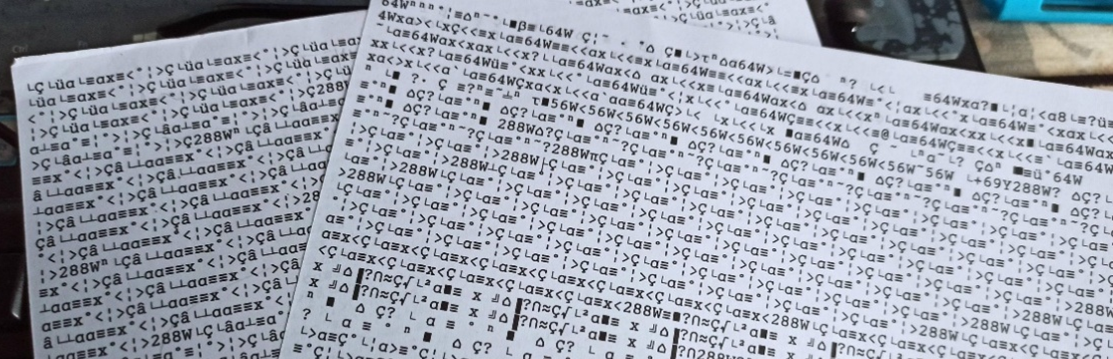
The possible causes are:
- Communication problem because of a faulty cable (USB or Network/ Ethernet Cable)
- Electromagnetic interference
- A corrupt or damage data file
 Tips: Tips: |
|---|
|
If incorrect characters appear in your prints, try the solutions shown below:
For printers connected by USB
If your product is connected to a USB hub, connect it directly to your computer instead.
Try these steps
- Power off the printer, disconnect the USB cable and wait for 10 seconds.
- Power the printer back on and if it starts up without printing try reconnecting the USB cable to a different USB port on your computer.
- In Windows, delete all jobs from the Windows Spooler. Click Print Queue on the Maintenance tab in the printer settings window and cancel any print jobs.
- If your computer entered sleep mode the last time you printed, the next print job after your computer exits sleep mode may contain garbled characters. Print your document again.
- If incorrect characters still appear in your prints, try connecting your product using a different cable. Make sure the cable is no longer than 1.8M.
For printers connected by a Network cable
If the printer is repeatedly printing sheets of random characters, the printer will be receiving the print data from a device connected with the printer. The first step is always to delete all jobs from the Print Queue on the Maintenance tab in the printer settings window and cancel any print jobs.
Try these steps
- To identify the source of the print data, turn off all devices connected to the network (e.g. router, printer, computers) and then power the printer back on.
- If the printer starts up without starting to print, next turn the router back on. If the printer still does not print the sheets then continue to individually power on the devices on your network to identify which device is causing the problem.
- When you have powered everything back on and the printer is not printing, try printing a test print.
Possible Electromagnetic interference
People of often unaware of the impact of Electromagnetic interference. This can be caused by having power cables next to USB or network cable which can cause data loss, resulting in garbled prints.
This can be the same for wi-fi. Interference can come from cordless phones, mobile phone, microwaves and even other wi-fi networks in the area, just some examples.
Try these steps
Possible Corrupt file
Sometimes a print job may contain garbled characters, this can be caused by the file you are trying to print, because it is damaged or corrupt. This can happen when a file is transferred, downloaded or saved, so when printing it comes out garbled as key information is missing.
Try these steps
- Cancel / delete all print jobs from the print job queue.
- Then restart the computer.
- Check you are using the latest version of the printer driver and if not download and install it.
- Once that has been checked / completed, select a different file to print as a test.
