How to replace a low or empty ink cartridge via the printer driver's Ink Cartridge Replacement Utility in Windows
Applies To
Description
You can use your computer to replace an ink cartridge, either before or after you're notified that it's expended.
Note: A flashing Ink or Maintenance light (or the equivalent LCD warning) usually indicates that the cartridge is low. A solid light or error message indicates that the cartridge is empty and requires replacement.
Make sure the printer is powered on and connected to the computer before following these steps.
Solution
- Select the print command in your application, then click Properties/Printing Preferences next to the printer name — or right-click the printer icon in the Devices and Printers folder and select Printing Preferences (see KA-01047 if you need help finding this folder).
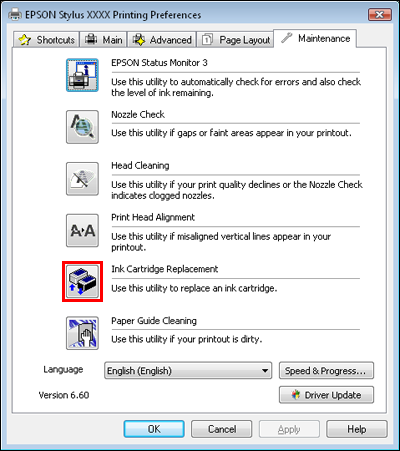
- Click the Maintenance tab.
-
To replace a cartridge before it's low or expended, click Ink Cartridge Replacement on the Maintenance tab.
-
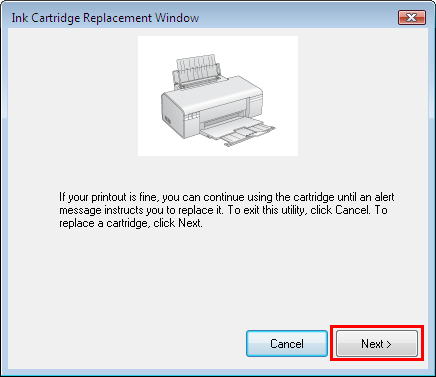
Click Next to begin.
-
Follow the on-screen prompts to replace the cartridge(s). Once replaced, the ink delivery system starts charging the ink.
Caution: Never move the print head by hand. Never open the cartridge cover while the print head is moving — wait until it stops at the replacement position. Don't power off the printer during ink charging, as this wastes ink and may cause the product to malfunction.
-
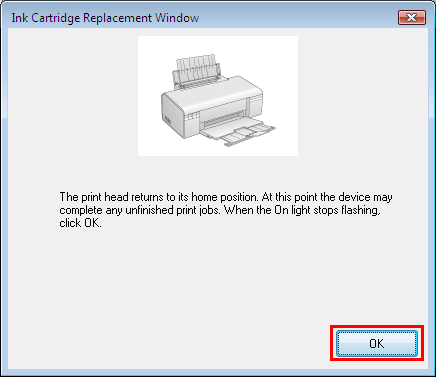
A prompt appears once the utility finishes — click OK to close it.
General Ink Cartridge Handling Notes
- Your printer's ink cartridges have an IC chip that monitors ink usage per cartridge — cartridges remain usable even if removed and reinserted.
- Some ink is used during print head cleaning and ink charging whenever a cartridge is installed.
- If removing a cartridge temporarily, protect the ink supply area from dirt and dust, store it in the same environment as the printer, and keep its colour label facing upward — never store a cartridge upside down.
- Don't touch the ink supply port or the surrounding area.
- Only remove a cartridge when you're ready to replace it — low-ink cartridges may not work if reinserted later.
- The use of non-Epson consumables may result in print quality issues or other printer-related problems. Any resulting damage may not be covered under Epson's warranty
- Keep cartridges away from children — never let children drink from or handle them. If ink contacts skin, wash thoroughly with soap and water; if it contacts eyes, flush immediately and see a doctor if discomfort continues.
- Don't open a cartridge's package until you're ready to install it — it's vacuum packed for reliability.
- Leave the old cartridge installed until you have a replacement ready, to prevent ink in the print head nozzles from drying out.
