macOS | Scan Using Image Capture When Epson Scan Is Not Available
Applies To
- Operating Systems: macOS
-
Related Articles:
- KA-01526 (installing the ICA driver used by Image Capture)
Description
If Epson Scan is not available for your Epson product on macOS, you can scan using Apple's built-in Image Capture application. Image Capture works with Epson's ICA driver and provides basic scanning functionality without requiring Epson Scan.
Symptoms
- Epson Scan is not available for your product on macOS.
- You cannot find a macOS download for Epson Scan.
- You need to scan but Epson Scan is not installed.
Solution
- Open Image Capture from the Applications folder.
-
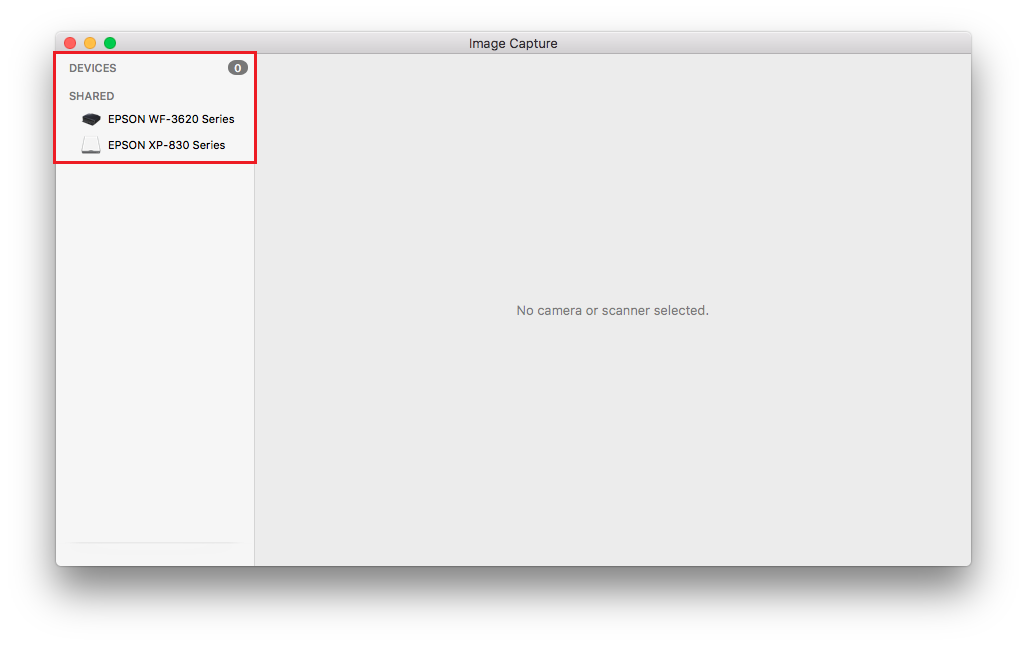
Select your Epson product from the Devices or Shared list. If the product does not appear, verify it is powered on and connected to the same network as your Mac.
-
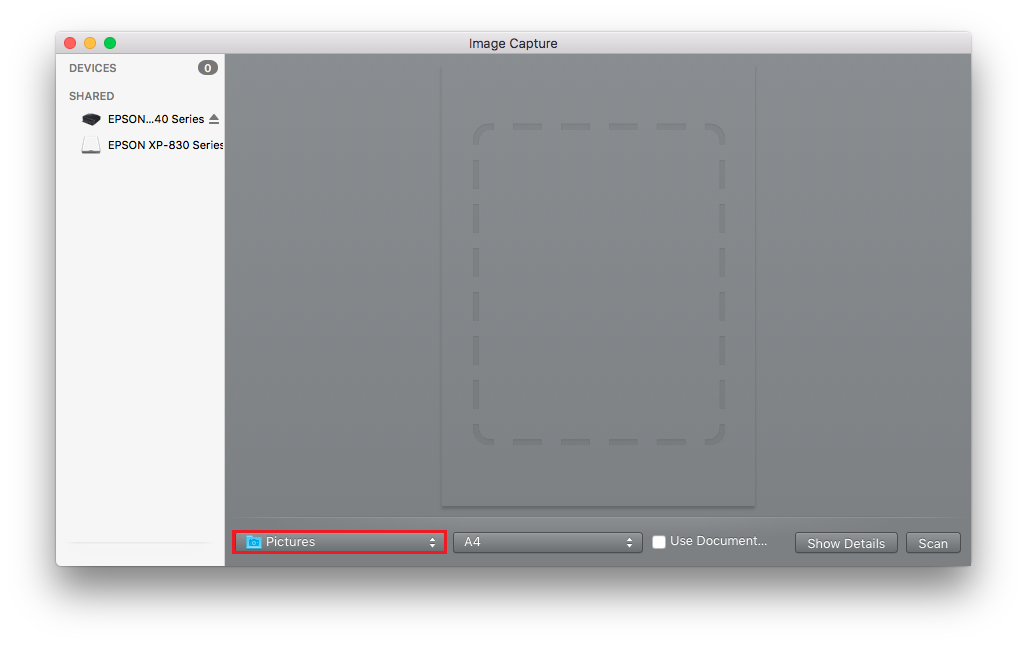
Select the folder where you'd like to save the scanned file.
-
Click Show Details.
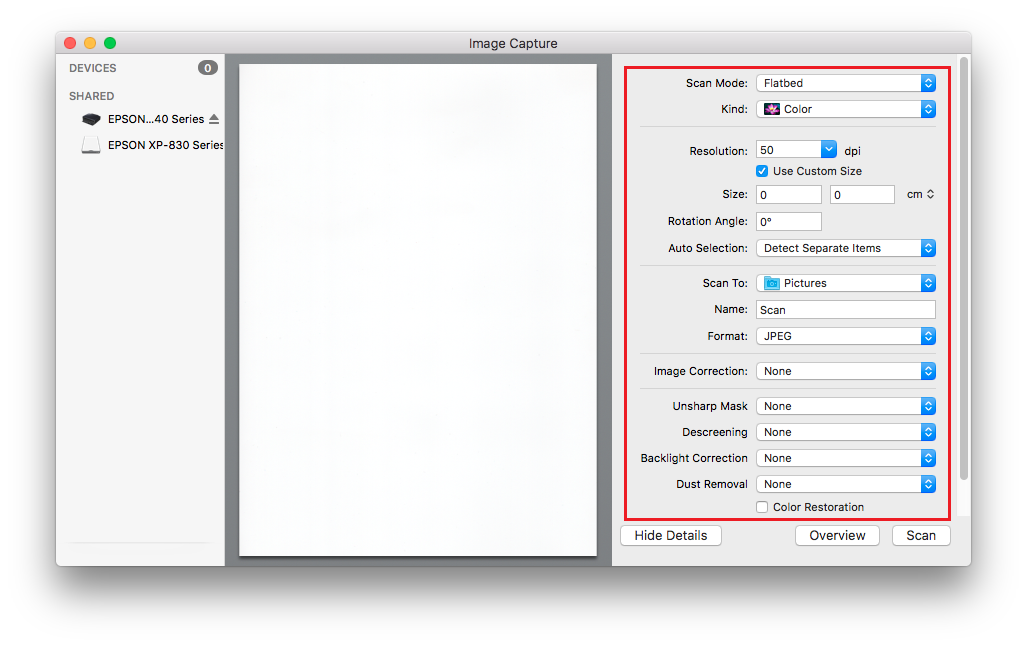
- If scanning an item on the scanner glass, your product begins a preview scan.
- Select the Scan Mode setting matching where you placed your original (if available).
-
Select any other scan settings as needed.
-
Click Scan. The scanned file is saved to the folder you selected.
Note: If your Epson product does not appear in Image Capture, install the Epson ICA driver and then restart Image Capture. See /faq/KA-01526/contents?loc=en-usKA-01526 for instructions.
