How to change or reset the default printer driver settings
Applies To
Operating Systems: Windows, macOS
Related Articles:
KA-01047 (opening the Devices and Printers folder)
KA-01055 (Black/Grayscale print mode — one of the driver settings this can reset)/li>
Description
The default printer driver settings for an A4 inkjet printer include A4 paper size, Plain Papers, Portrait orientation, and Text print quality mode. You can change these settings to your preference, or revert to the defaults, via the printer driver. Close any open applications before starting.
Note: Changes made this way apply to every future print job in every program, until changed again - this is different from changing a setting inside one application's own Print dialog, which only affects that print job or session.
Two ways to reach the driver settings window — use whichever is quicker for you:
Click the Start menu, then Control Panel.
In Control Panel, open the printers folder — see KA-01047 if you need help with this step.
Right-click your Epson printer icon and select Printing Preferences.
Tip: Alternatively, right-click your printer's icon directly in the Windows taskbar (click the ^ arrow on the taskbar first if it's hidden), then select Printer Settings — this opens the same driver settings window without going through Control Panel.
Once the driver settings window is open:
Start on the Main tab of the printer driver (some models use a Basic Settings tab instead).
Click the Restore Defaults, Reset Defaults, or Default button — the exact label depends on your driver version, with Restore Defaults being the label used on the latest drivers.
Click OK to save the changes as the new default. The Apply button stays greyed-out — OK is what saves the change.
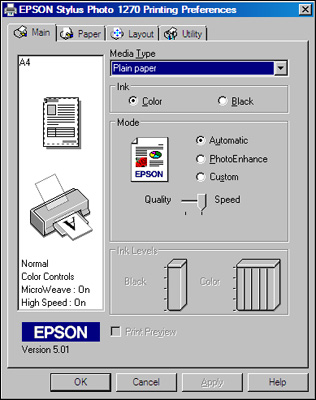
Note: Some printers use an older driver style with Main | Paper | Layout | Utility tabs, which has no Restore Default/Reset Defaults/Default button at all:
If your driver looks like this, click through each tab to check and change the settings manually, then click OK to save them as the new default.
macOS
From the Apple menu or the Dock, select System Preferences or System Settings.
Select Print & Fax, Print & Scan, or Printers & Scanners, select your product, then select Options & Supplies.
Select Driver or Options.
Select any of the available printing preferences.
Click OK.
Note: Available settings and the appearance of this screen vary by macOS version and application. macOS doesn't offer a single "reset to factory default" button the way some Windows drivers do - instead, set each preference here to the value you want as your new default.