How to Prepare Your EcoTank Printer for Transport or Storage
Applies To
- Hardware: Epson EcoTank and ink tank (L series) printers, when moving house, sending the printer for repair, or storing it for an extended period
- Software: Not applicable — this is a physical packing procedure
- Related Articles:
Description
Unlike cartridge-based printers, EcoTank and ink tank (L series) printers hold liquid ink in tanks built into the printer body. If the printer is tilted, stood on end, or turned upside down while being transported or stored, ink can leak from the tanks or the maintenance box, and the printer could also be damaged if it falls. Follow the steps below whenever you need to move, ship, or store one of these printers, to avoid ink leaks and print head damage.
Note: Please check you printers user guide for specific instructions by visiting the Epson Support page
Solution
Work through these steps in order before moving or storing the printer. When lifting it, use proper posture to avoid injury, ask someone to help you carry larger printers rather than lifting alone, and never lift or carry the printer by its control panel — this can damage it.
Note: The exact order of a couple of these steps — such as raising the control panel before opening the scanner unit, or checking the ink tank caps before opening the scanner unit rather than after closing it — varies by model. If your printer works differently from the order below, follow the sequence in its own Start Here guide or user's guide instead; the precautions themselves are the same regardless of the order.
- Turn the printer off using the power button.
-
Wait until the power light turns off completely, then unplug the power cable.
Important: Only unplug the printer once the power light is off. Unplugging while it's still lit can prevent the print head from returning to its home position, causing it to dry out and become unable to print.
- Disconnect and bundle up any cables — the power cable, and if connected, the USB cable, wired network cable, and phone line (if the printer has fax capability).
- Check that no memory cards or USB storage devices are still inserted.
- Remove any paper loaded in the paper cassette or paper support.
- On an all-in-one model, check that no originals have been left on the scanner glass or in the automatic document feeder, then close the document cover.
-
On models where the control panel folds or raises up, lift it out of the way first.
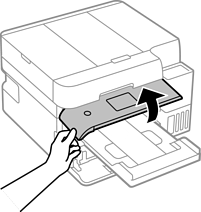
-
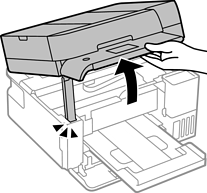
Open the scanner unit until it clicks into place (model dependent).
Opening the scanner unit from side, depending on your model
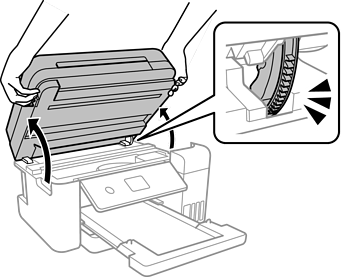
Opening the scanner unit from control panel, depending on your model
-
If shipping the printer — for example, sending it for repair — secure the print head so it can't move, using ordinary tape.
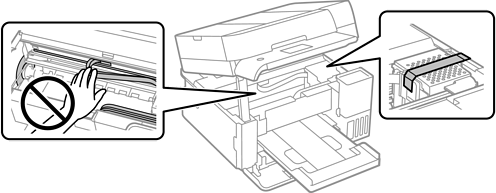
Note: This step isn't necessary if you're only storing the printer in place. Apply the tape without covering the holes in the carriage area, or you won't be able to close the scanner unit again. Avoid touching the white cable or translucent components inside the printer, as this can cause a malfunction.
-
Open the ink tank cover (if applicable)
.png)
.png)
-
Make sure the cap is installed securely onto each ink tank.

-
Close the ink tank cover securely (if applicable)
.png)
.png)
-
Close the scanner unit.
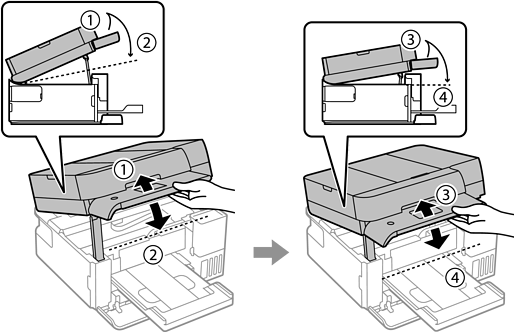
Note: For safety, the scanner unit closes in two steps. It must be closed completely before it can be opened again.
-
Prepare to pack the printer as shown below.
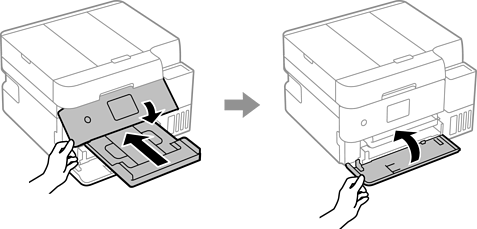
- Place the printer in the plastic bag and fold it closed.
-
Pack the printer in its box using the original protective materials.
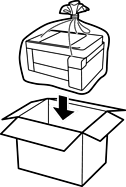
Important:
-
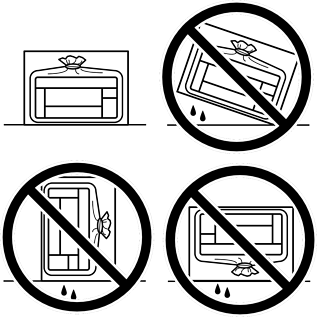
Keep the printer in the plastic bag, folded closed. Avoid tilting it, standing it vertically, or turning it upside down — ink may leak.
- When storing or transporting an ink bottle, don't tilt it, and avoid impacts or temperature changes — ink can leak even with the cap tightened securely. Keep the bottle upright when tightening the cap, and take precautions to prevent leaks in transit, such as placing it in a bag.
-
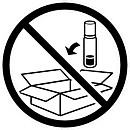
Don't pack opened ink bottles in the box with the printer.
-
Note: If you no longer have the original packaging, use a box somewhat larger than the printer and wrap the printer in bubble wrap or similar padding before boxing it. Never pack an opened ink bottle or ink cartridge in the same box as the printer — if it leaks in transit, it can stain or damage the printer.
Before turning the printer back on, remember to remove the tape securing the print head if you applied it. If print quality has declined once you print again, run a nozzle check and clean and align the print head.
