Epson Ink Cartridge Recognition Troubleshooting
Applies To
- Hardware: Epson A4 and A3/A3+ inkjet printers.
- Related Articles: KA-01046 - changing ink cartridges.
Description
This covers resolving the "Ink Cartridge Could Not Be Recognised" error, and cases where the red ink light stays on after replacing a cartridge.
Solution
1. Identify the Unrecognised Cartridge
Determine which specific ink cartridge isn't being recognised. If you're unsure of any step, check your printer's user guide — download the latest version from the Epson Support website if needed.
2. Verify Cartridge Authenticity and Compatibility
Confirm the cartridge is a genuine Epson product — look for EPSON branding and a product code on the label. Check the product code is compatible with your specific printer model; you can find product codes on the cartridge itself, the Epson Store website, or in your user guide.
3. Inspect and Reinstall the Cartridge
-
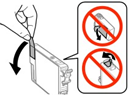
Remove the yellow tape from the cartridge, if present.
-
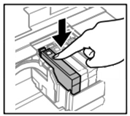
Reinstall the cartridge, pressing it down until it clicks into place.
-
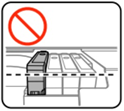
Make sure the cartridge is level with the others and seated in the correct slot — use the colour-coded label above the ink holder to check.
4. Clean Cartridge and Printer Contacts
-
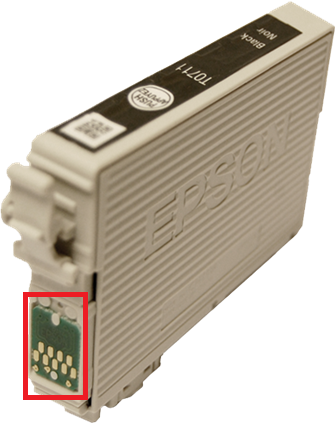
Wipe the green chip on the cartridge with a dry, lint-free cloth — avoid direct contact with the chip itself beyond gentle cleaning.
-
Check the gold contacts inside the cartridge holder for debris or dried ink — clean with a lint-free cloth if needed.
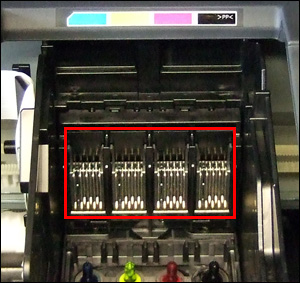
5. Check Cartridge Piercing
Confirm the plastic film at the bottom of the cartridge has been pierced correctly. If it hasn't, reinstall the cartridge to let the printer pierce it as intended.
6. Final Verification
If the error light continues flashing, or the LCD still shows an error after reinstalling, the cartridge may still not be seated correctly — recheck its installation and position.
Tips
- Always use genuine Epson cartridges to avoid compatibility and recognition issues — product codes are printed on the top and side of each cartridge.
- Avoid touching the green chip directly beyond gentle cleaning, to prevent damage or interference with recognition.
Frequently Asked Questions
What Should I Do if the Cartridge Is Genuine but Still Not Recognised?
Try cleaning the chip and reinstalling the cartridge. If the issue continues, replace it with a new genuine Epson cartridge.
What if the Printer Doesn't Recognise the Replacement Cartridge?
If the red ink light stays on, or the LCD still shows an error after installing a new cartridge, the issue may be with the printer itself — contact Epson support for further assistance.
