How to print an envelope from Microsoft Word
Applies To
- Software: Microsoft Word
-
Related Articles:
- KA-01047 (opening the Devices and Printers folder)
Description
Before choosing an envelope to print on, check the weight and envelope sizes your printer supports — see the "Product Information" or "Paper Handling" section of your user guide, also available in your product's Online Support and Manuals section on the Epson Support website.
Solution
Check the Envelope Size Is Supported
The most common supported sizes for an Epson inkjet printer are:
- Envelope No 10 = 4⅛ x 9½ in
- Envelope DL = 110 x 220 mm
- Envelope C6 = 114 x 162 mm
- Envelope C4 = 229 x 324 mm (A3+ printers only)
Important: Epson A4 printer models don't support C4/A4 size envelopes — they're too large for the paper feed width and may damage the paper feed mechanism.
Loading Envelopes
Insert up to 10 envelopes with the printable side facing down, and the flap edge to the left. Fan and align the edges of the envelopes before loading — if you have trouble loading a stack, try pressing each one flat first, or load them one at a time. If print quality declines when printing multiple envelopes, try loading one at a time instead.
Note: If your printer's LCD screen prompts you to confirm the paper size and type after loading (Paper Setup Auto Display), register the envelope size and select Envelope as the type. This lets the printer warn you if your print settings don't match what's actually loaded — helping avoid wasted paper and ink from a mismatch.
Set Up the Envelope in Word
For the steps to set up envelope printing within Word itself, see Microsoft's own support article on printing an envelope.
Set the Correct Document Size and Paper Type in the Epson Driver
Word's own envelope setup only controls the page layout — you also need to tell the Epson printer driver you're printing on an envelope, otherwise the print job may come out misaligned, poor quality, or fail to feed correctly.
- From Word's Print screen, open the printer's own settings — look for a Printer Properties, Preferences, or similar button or link.
- Click the Main tab.
-
Set Document Size to match your envelope — for example, Envelope DL 110 x 220 mm.
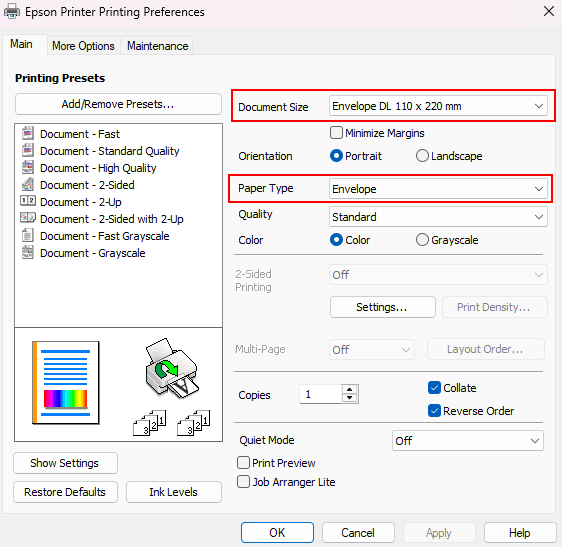
- Set Paper Type to Envelope.
- Click OK, then print as normal.
Note: Exact option names may vary slightly by model — check your user's guide on the Epson website to confirm.
