How to uninstall Epson drivers and software
Applies To
Description
This article explains how to remove or uninstall Epson printer drivers and software in Windows 10, Windows 11, and macOS.
Solution
Windows 11
- Click Start.
- Search for Settings and select it.
- Select Apps > Installed apps.
- Find the Printer Uninstall entry for your product (e.g. "EPSON ET-3850 Series Printer Uninstall"), click the three dots, and select Uninstall.
-
Select the program to uninstall and select Uninstall again.
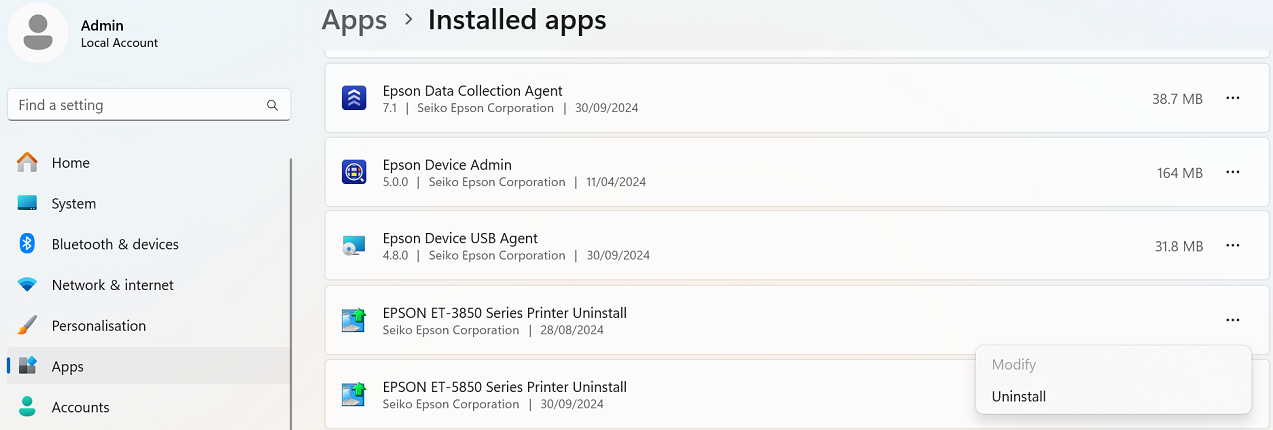
Note: Click Yes if prompted with a Windows permission request to "Uninstall or change an application."
-
Click your printer and click OK to uninstall it.
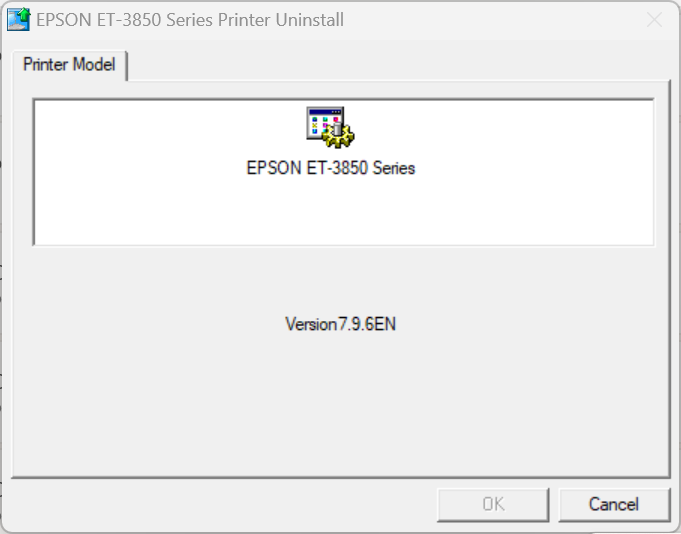
-
Click Yes when prompted to confirm deletion.
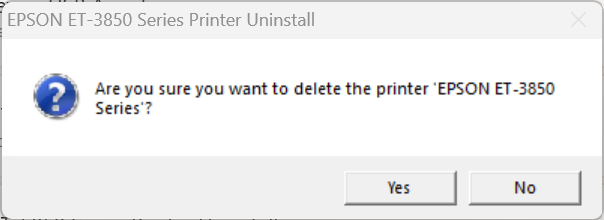
-
Click OK once the uninstall is confirmed complete.
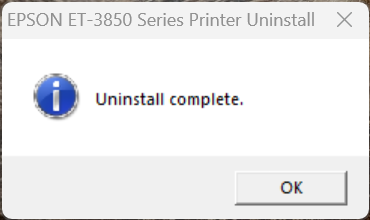
- Make sure the printer is still powered off and disconnected, then restart the computer.
Note: If your printer model is listed more than once, repeat this procedure for each duplicate driver. Repeat for any other Epson software you wish to uninstall too.
To reinstall, download the latest drivers from the Epson Support website.
Windows 10
- Start with the printer powered on and connected to the computer.
- Open the Devices and Printers folder and check for/cancel any queued documents for all installed Epson printers — see KA-01056 if you need help with this step.
- Power off the printer and disconnect the data cable.
-
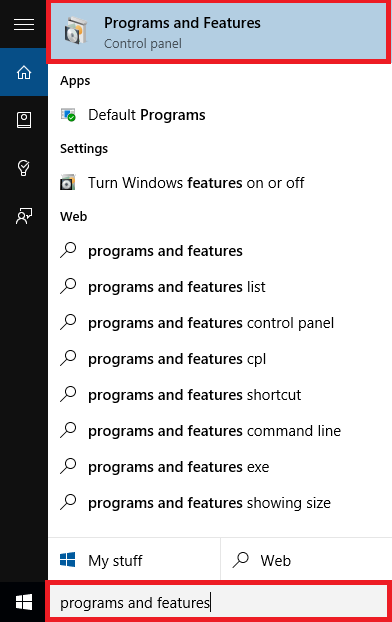
Click the search bar at the bottom left of the screen.

-
Type Programs and Features and press Enter.
-
Select the Printer Uninstall entry for your model, e.g. "EPSON XP-820 Series Printer Uninstall," and click Uninstall/Change.
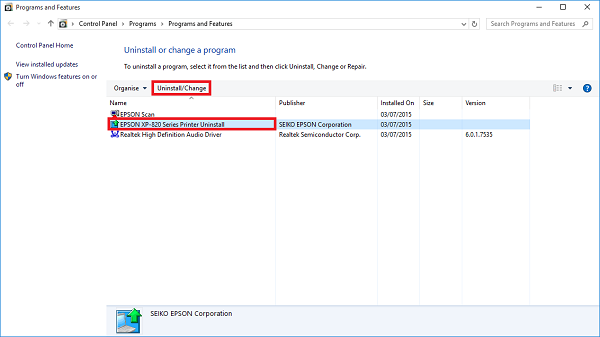
Note: If you have more than one icon for your Epson printer model, repeat this procedure for any duplicates.
-
Click your printer and click OK to uninstall it.
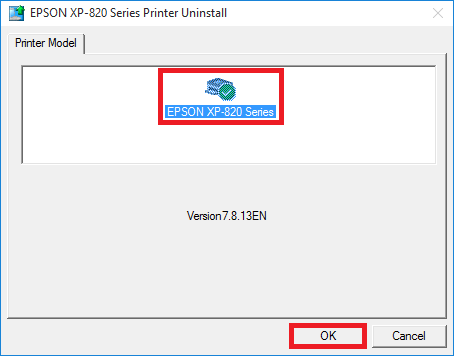
Note: Click Continue if prompted with a Windows permission request to "Uninstall or change an application."
-
Click Yes when prompted to confirm deletion.
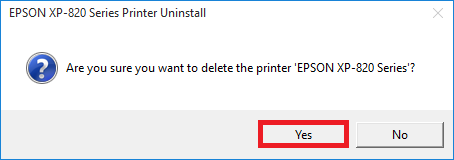
-
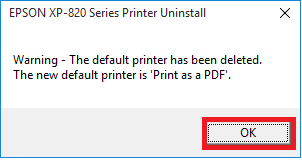
You'll see confirmation the printer was deleted and another printer set as default.
-
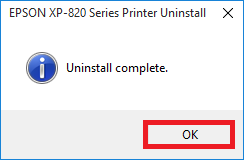
Click OK once the uninstall is confirmed complete.
- Make sure the printer is still powered off and disconnected, then restart the computer.
To reinstall, use the latest recommended drivers from the Epson Support website.
macOS
Remove an Epson printer
Note: To remove Epson software, you'll need to be signed in with a Computer Administrator account — this can't be completed from a Limited user account.
- Close all open applications.
-
Open the Apple menu and choose System Preferences (or System Settings in newer macOS versions).
-
Select Printers & Scanners (or Print & Scan / Print & Fax).
-
Choose your Epson Printer (e.g., ET‑4950/L6390) from the list.
-
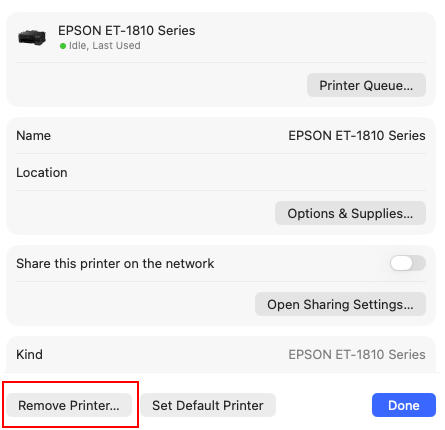
Click Remove.
-
The Printer will be removed from the list.
Remove Epson software using the Epson Uninstaller
In most cases, you do not need to uninstall Epson software before reinstalling it. However, if troubleshooting requires a clean installation, you can use the Epson Uninstaller utility.
Important: The Epson Uninstaller removes all selected Epson software components. For example, if multiple Epson printer drivers are installed and you choose to uninstall printer drivers, all installed Epson printer drivers will be removed, not just the driver for a specific printer.
-
Download the Epson Uninstaller from the Epson Support page for your product or from the Epson Download Center.
-
Open the downloaded file.
-
Double-click the Uninstaller icon to launch the utility.

-
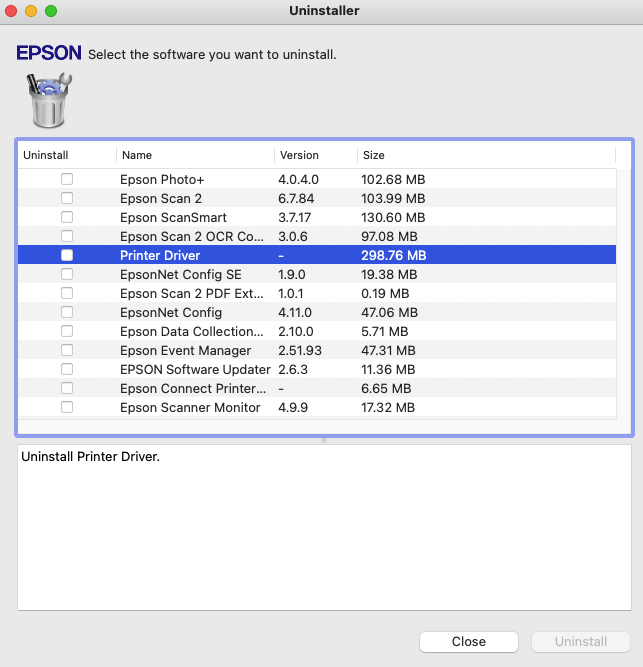
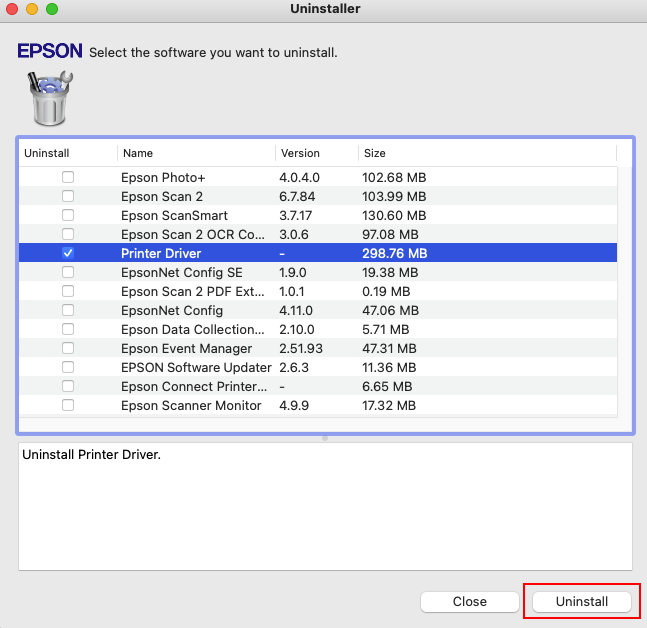
The utility will display all Epson software currently installed on your Mac.
-
Select the software you want to remove (for example, the Printer Driver) and click Uninstall.
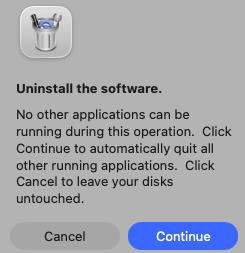
- Follow the on-screen instructions to complete the uninstall process.
-
When the process is complete, click Quit to close the utility.
- If Epson printers are still listed in Printers & Scanners, remove them by following the steps in Remove an Epson printer above.
- Reinstall the required Epson software for your product.
Note: The Uninstaller removes software by component type. If multiple Epson products use the same software component (such as printer drivers, scanner drivers, or utilities) and that component is selected, it will be uninstalled for all Epson products that use it and may need to be reinstalled afterwards.
