Operating Systems: Windows 11, Windows 10, Windows 8, Windows 7
Related Articles:
KA-01047 (opening the Devices and Printers folder)
KA-01084 (checking driver and print queue status more generally)
Description
If print jobs are stuck in the queue, you won't be able to print. This can happen if a job is corrupted during spooling, there's a communication issue, or you tried to print while the printer was in an error state, offline, or paused.
Solution
Open the Devices and Printers folder — see FAQ KA-01047 if you need help with this step.
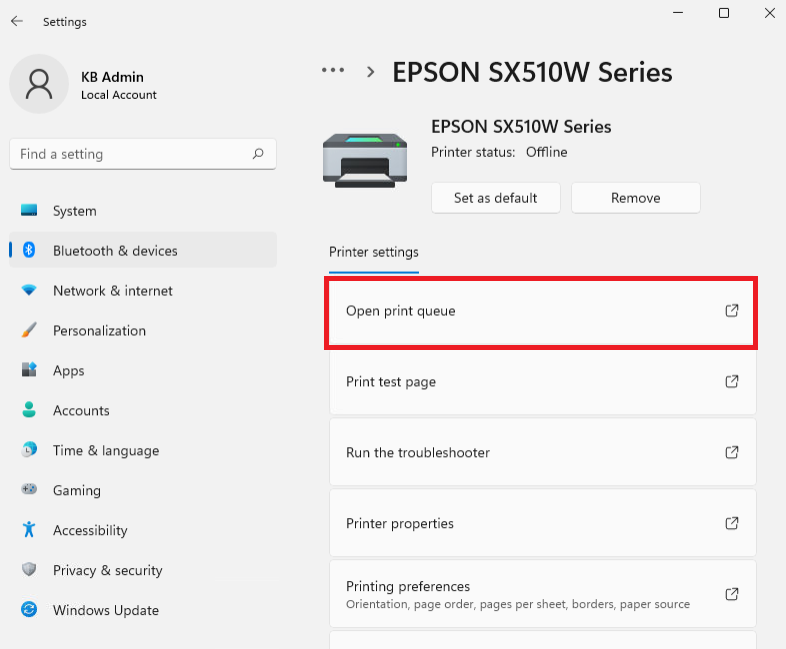
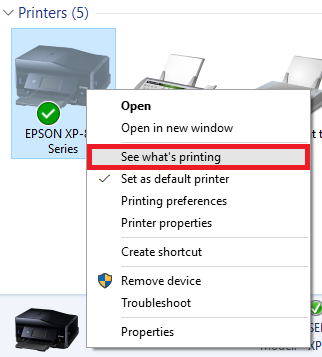
Open the print queue:
Windows 11: select your printer, then click Open print queue.
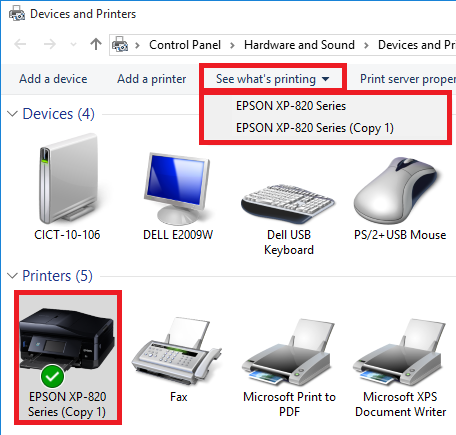
Windows 10 / 8 / 7: right-click your printer icon and select See what's printing.
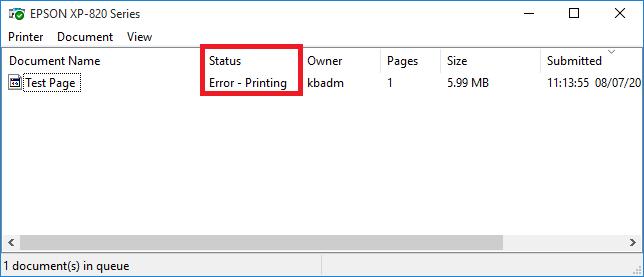
If the queue is empty, no action is needed. If documents are listed, they'll look similar to this:
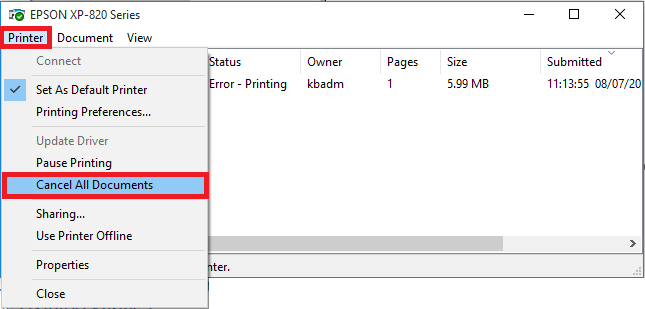
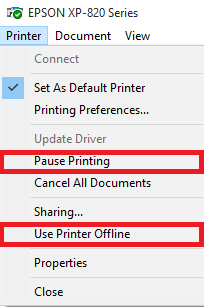
Select the Printer menu, then Cancel All Documents.
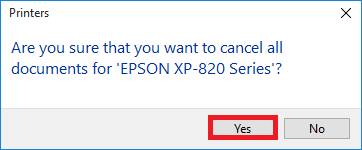
Click Yes to confirm.
Close the Printers folder and any other open windows, then restart the computer — this refreshes the print spooler.
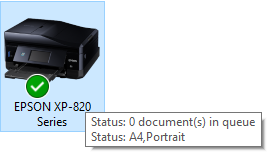
Once restarted, reopen the Printers folder and confirm the printer status shows Ready with nothing waiting — hovering over the printer icon will show this in a pop-up.
Note: If the printer status still shows Paused or Offline after this, open the print queue again, select the Printer menu, and untick Pause Printing and/or Use Printer Offline if either is ticked.
Note: If your printer icon is labelled "(Copy 1)" or similar, or more than one icon exists for the same model, you have duplicate driver instances installed. The default is marked with a tick.
Repeat these steps for each copy — clicking a printer with a drop-down arrow on "See what's printing" will list all copies.