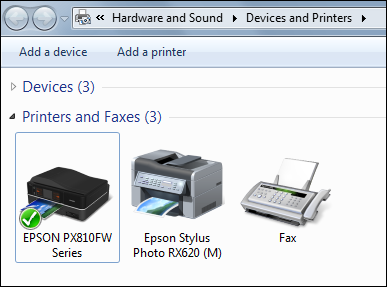
How to open the Devices and Printers / Printers & Scanners folder in Windows
Applies To
Description
Several other troubleshooting articles depend on this folder as a starting point. The exact path differs by Windows version — choose the tab for your version below.
Solution
Windows 11
-
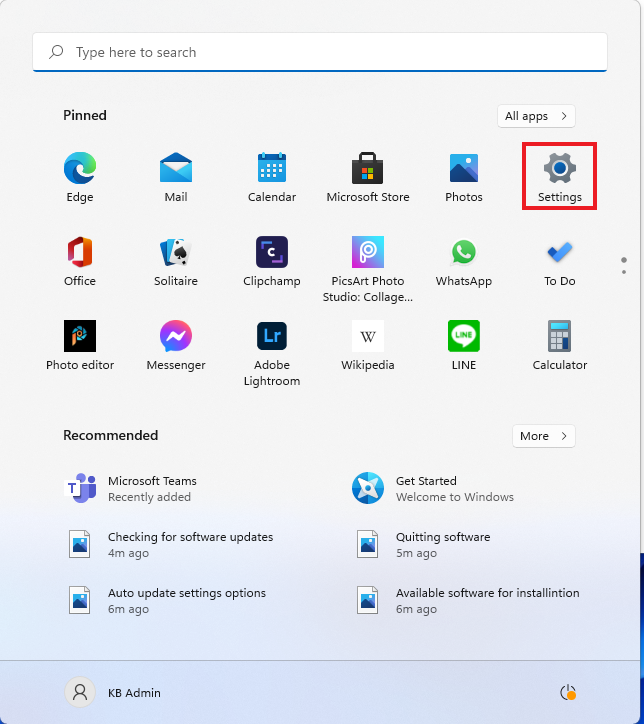
Click the Start button.

-
Select Settings.
-
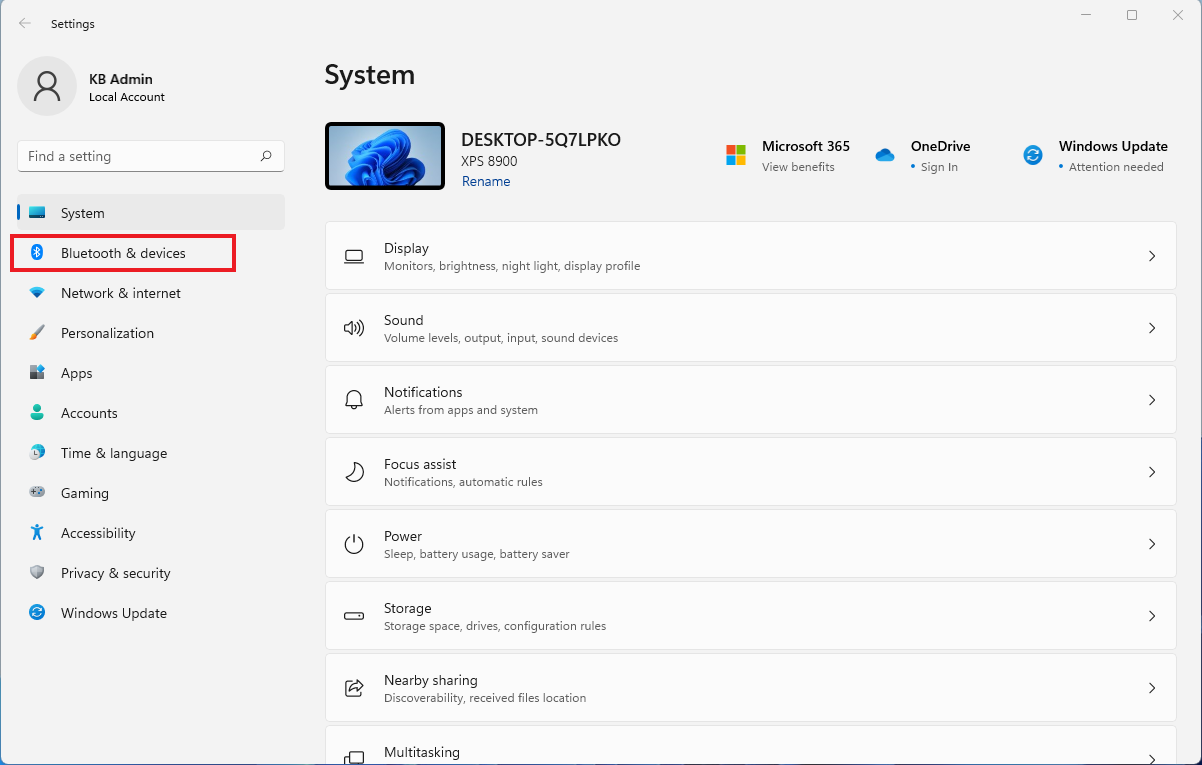
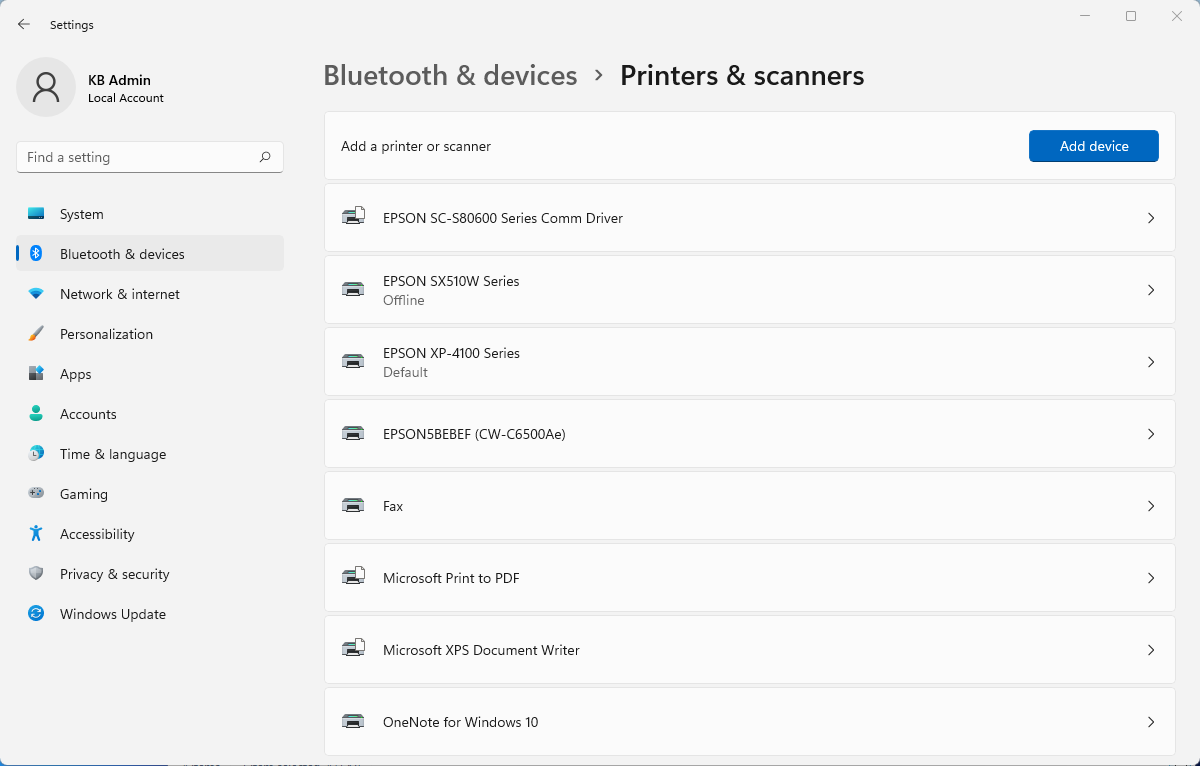
In the Settings menu, click Bluetooth & devices.
-
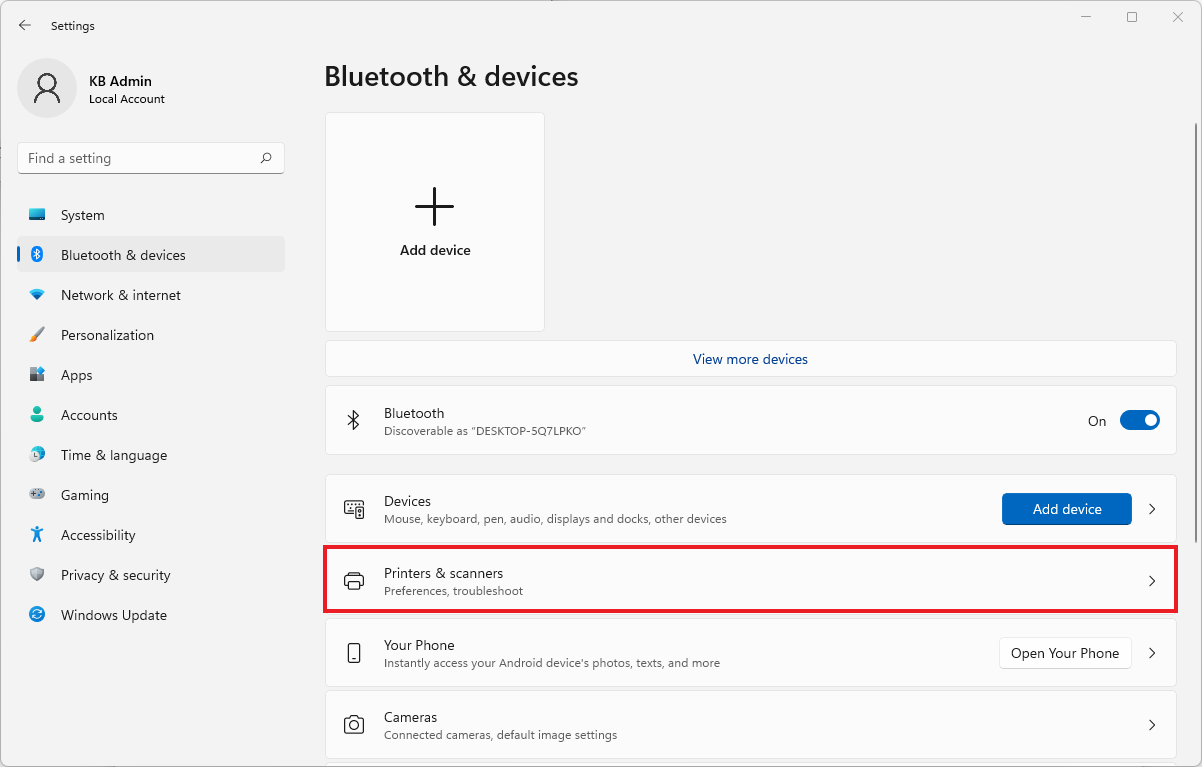
Click Printers & scanners.
-
The Printers & Scanners window opens.
Note: If your Epson printer isn't listed, the driver isn't installed — download and install it from the Epson Support website first.
Windows 10
-
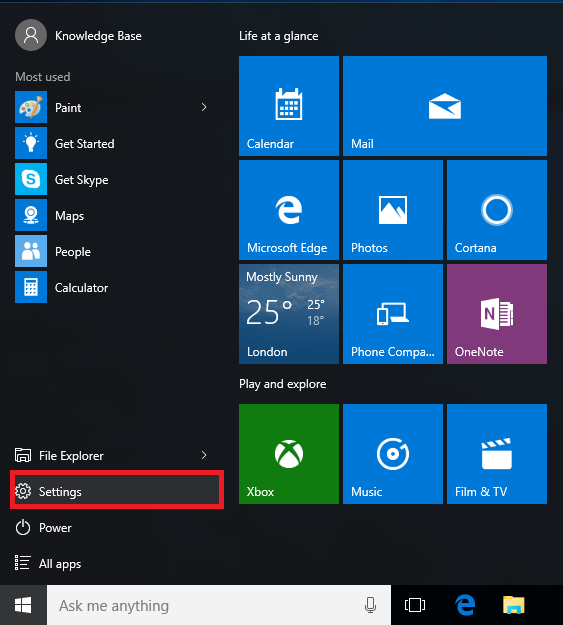
Click or tap the Start button at the bottom left of the screen.

-
Click or tap Settings.
-
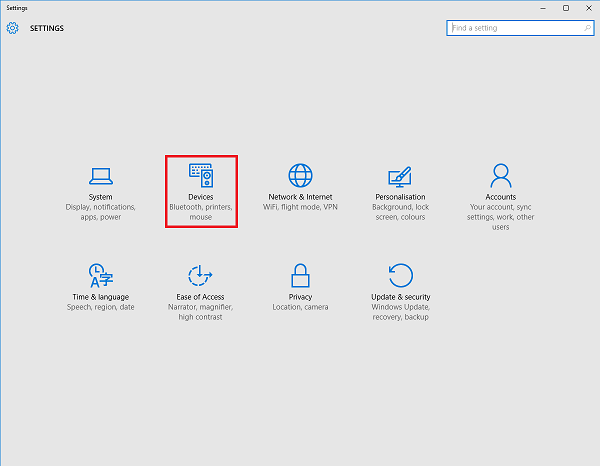
Click or tap Devices.
-
Click or tap Devices and Printers at the bottom of the window.
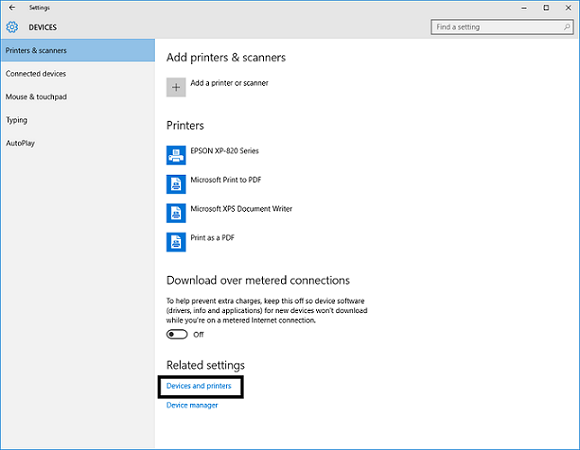
Devices and Printers Window
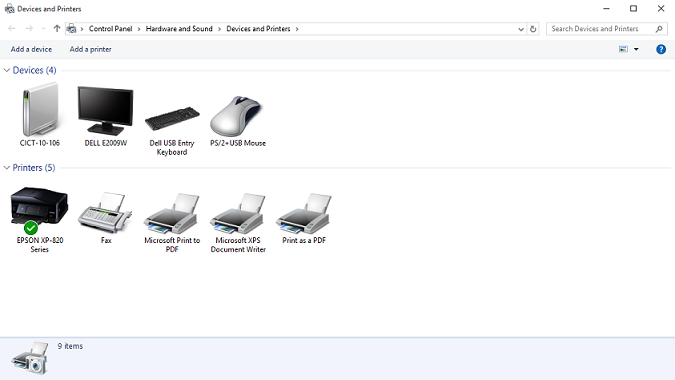
Note: If your Epson printer isn't listed, the driver isn't installed — download and install it from the Epson Support website first.
Windows 8
-
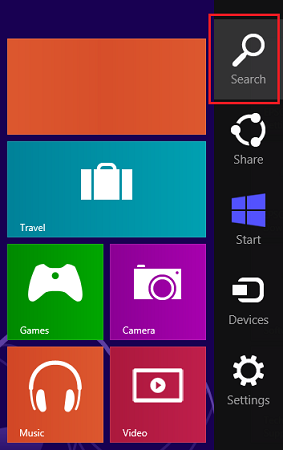
Move the mouse cursor to the bottom or top-right of the screen and click the Search icon.
-
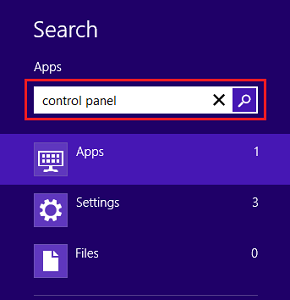
Type Control panel in the search bar and press Enter.
-
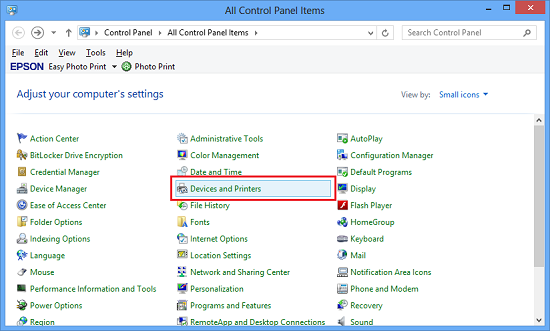
In Control Panel, double-click Devices and Printers (Small/Large icon view), or click View devices and printers (Category view).
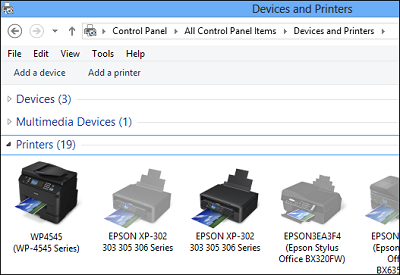
Note: If your Epson printer isn't listed, the driver isn't installed — download and install it from the Epson Support website first.
Windows 7
-
Click the Start button, then click Devices and Printers.
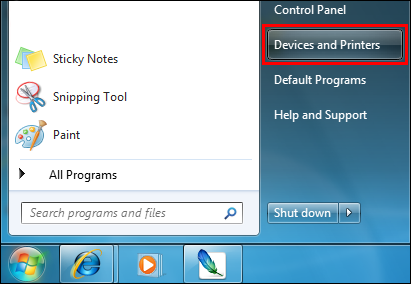
-
Alternatively, type device in the Start Search box and press Enter, or click Devices and Printers from the results.
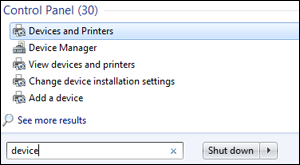
-
The Devices and Printers folder opens.